Showing posts with label Search How-to. Show all posts

Friday, October 21, 2011

Searching with Google

Most people when they need to find something online turn to their favorite search engines for answers. This often means Google and sometimes Bing or Yahoo. These are massive search engines that give you thousands of results, far too many to go through. What ends up happening is you look at only the first couple of pages hoping that something useful is there. However, if you know a little something about searching you can get those useful results closer to the top of the list.

Think carefully about the subject you are trying to find information on and come up with a sentence that describes what you want.
Click for larger image.

 Pick out the 2-3 fact carrying words from that sentence to use in your search. 
Look at the difference in the first results.

If you get few (good) results try re-thinking your words. One of the words you picked might not be the one most used by people writing on the subject. From your results find out how most people write about your topic and use their words. You might have to do several searches until you get the right combination.

Now, on to what you actually type. You can get better results by using certain symbols to limit or broaden your search. Let’s look at Google.

When Google does a search it looks not only for your word but for plurals and synonyms. If you do a search for the words nurse and school you will get results for nurse, nursing, nurses, school, and schools.
If you want to stop it from looking for all those other words put a + sign in front of the word, like +nurse and you won’t get all the similar terms.

If you do want it to look for similar and related terms you can put a ~ sign in front of the word, like ~school. Doing this will get you results for not just school, schools, and schooling, but also academy, teacher, and institute.

Search engines don’t generally look for what are called “stop words”. These are common words like and, a, the, but, or. If you want to look for them in a phrase, or if you want to look up words in a specific order, put quotations around your phrase. “And that’s all” will give you that exact phrase. If you search for it without the quotation marks you won’t get the “and” and “that’s” and “all” will be out of order.

If you want to find two words near each other separate them with AROUND(5) which will make sure they are within 5 words of each other. It might look like, storm AROUND(5) damage.

You can combine all these things, like ~storm AROUND(5) +damage. Try ~storm ~damage. Try different words and combinations to see what you get.


When you get the results Google gives you further options to the left side to narrow things down. You can search for images, videos, news, blogs, and more. You can narrow your search to a certain time period, say the last year, or create your own custom date range to only look for things in the last five years. There are other things you can do, like look for translated pages or related searches. You can play with them if you want but the most useful might be the Not Yet Visited option so you can exclude websites you’ve already looked at.

You can also use the Advanced Search Screen to better organize your thoughts.


As a search tip remember that, especially with medical related topics, there is always an organization, foundation, council, or association and their websites are great sources of information. Look over the website to make sure they aren’t trying to push a specific viewpoint. Always ask the questions: Who is paying for this? Who benefits? Why do they exist?  MedlinePlus is a great place to find legitimate associations and foundations.

Tuesday, August 16, 2011

MeSH (Medical Subject Headings)

MeSh, or Medical Subject Headings, is the controlled vocabulary created by the National Library of Medicine for indexing purposes. Many medical institutions and schools use these specialized terms in order to organize and allow easier access to their holdings. Searching by these headings or their subheadings allows you to find articles and books on topics you are interested in that you wouldn't find with a keyword search. As I said in the post on searching PubMed (http://ghntslibrary.blogspot.com/2011/07/searching-pubmed.html) your search phrase may not be in the title, abstract, or text. You can't know exactly what words or phrases the individual authors are going to use. Catalogers solve this problem by assigning a phrase from the controlled vocabulary to all these similar articles.

Try doing a "Title/Abstract" and a "MeSH Terms" search on "Medication Errors" and compare the results. "Title/Abstract" gives you 2257 results while the "MeSH Terms" search gives you 8691. That means that the Title/Abstract search is missing 6434 relevant articles because the exact phrase you were looking for isn't mentioned. While you don't want to look through over 8000 results, this at least gives you some leeway in narrowing things down by using further search terms and limiters.

Her's the homepage of PubMed. Click on the MeSH Database link at the lower right. Here you can search for the exact terms to use.

Click to enlarge.
You can search for a MeSH the same way you search for anything else. It will even give you options as you type.


Next you will be taken to that Subject Headings page. This breaks down what category your term is in and what subheadings it has. Subheadings are further classifications within the main category. Using these terms in the MeSH Subheadings field on the advanced search page allows you to create even more specific searches.

You can see where Medication Errors falls in the Health Care Category.
You can also search from the MeSH database. Notice the search box to the right of the page. You can search for everything labeled Medication Errors by checking the box "Restrict to MeSH Major Topic". If you don't want to search the categories further down the line, which in this case includes "Medication Reconciliation", check the box "Do not include MeSH terms found below this term in the MeSH hierarchy". You can check both of these together to restrict your search to Medication Errors.
You can also search the subheadings by checking the ones you like. If you check any of these you cannot also check the Restrict box.

Once you've checked the boxes that interest you, click the Add to Search Builder button and it will appear in the search box.


You can add more than one term and you can even use the Boolean AND, OR, or NOT by adding a term you don't want to look for with the NOT button chosen. Then you can hit Search PubMed and you will be taken to the search results page. Remember to click the free full text button at the right to see what articles are immediately available.

Wednesday, July 27, 2011

Searching PubMed

PubMed (http://www.ncbi.nlm.nih.gov/pubmed) should be your go-to for medical articles. It's the search engine for the National Library of Medicine, with articles on medicine, nursing, dentistry, veterinary medicine, the health care system, and preclinical sciences from Medline, life science journals, and online books. It has thousands of free full-text articles and all of them are from trustworthy sources.

 The main page has many useful resources but let's focus on just the search feature for now. At the top is the basic search bar. Using that is likely to get you an overwhelming number of results though. Try the advanced search instead. As usual, it gives you many options to narrow things down.

Click to enlarge. Note all the resources at the bottom of the page.

The advanced search page has one big field at the top where your search will be built piece by piece. What you do is use the smaller box below it to add search terms and limiters. Choose a field from the drop-down menu to the left, like Title/Abstract, put your term in and then click "Add to Search Box." Continue to add terms until you're satisfied that you've specified what you want.

Choose a field, enter your terms, click Add to Search Box. The field you just wrote in will clear and your term will be added to the big box at the top.
I would suggest also using the "Publication Date" field to limit your results to articles from the last 5 years or so. Choose "Language" so you can filter out articles you can't read.

You can see the search terms I've added in the big box at the top.


You can look for things by subject as well. A word (or several) on that. PubMed uses Medical Subject Headings, or MeSH terms. (Library of Congress Subject Headings, LCSH, are most used outside medical libraries. Sometimes these two systems are used together.) These are a controlled vocabulary that lets similar documents be grouped together so they can be found easier. That way if you are looking for an article on "medication errors" and the article you want doesn't have that phrase but instead uses "medication administration errors" you'll still find it. To find out what subject headings there are you can search the MeSH database but I'll talk about that later. Choose "MeSH Terms" to search for a subject.

When you have entered everything in and your search is ready you can click preview and the number of articles that match your search will be displayed. If there are too many you can change your search to narrow things down. If there are too few try taking out one of your search terms or changing your language. This is when it is useful to search by MeSH terms rather than looking for a specific phrase in the article's text. When you are happy with what you've got, click search.

This search when done will give me 44 results.
Your results are now listed but you need articles you can read without paying a ridiculous 30 bucks to buy. Click on the "Free Full Text" link to the right.

With what companies charge to read scholarly articles you'd think academia was only for the rich or something.
Choose an article that catches your fancy. Read the abstract to see if it looks good and then click the "Link Out" button to see where it's available.


I would recommend choosing the PubMed links if you have the option. You can also look and see which MeSH terms the article has been assigned to by clicking on the link located above the Link Out button. You can click on any of the terms to see what else is filed under it.

This is also a good way to find out what terms you can search by.

Remember to write down what steps you've taken when conducting a search so you can duplicate it later if necessary and so you know what you've already tried. If you can't recall what you've already done you might end up going in circles and getting increasingly frustrated. Also, when you've found an article you like, write down the full citation information so you can find it again.

Wednesday, July 13, 2011

Searching ebrary

There are a lot of very useful resources in ebrary's Academic Complete collection. They have nearly 70,000 full-text items in 20 subject areas, 288 listed under the subject of nursing. They also have dictionaries, math and science books, history, law, and so on. With so many books it is absolutely necessary to master their search engine. Let's take a look at how it works.

Simple search box with the advanced option top right.


If you use the simple search box on the main page it will search the text of the books. This can get you too many results. Try looking up the word "Pheromones" and you get 829 documents. To find out where the word pops up in each document, go to the Chapter Results tab at the top.
Click to see larger image.
You'll be taken to a page where each book is listed along the chapter that your word appeared most. These results are ranked by how often there was a hit on your search term in the book.

You can click on the chapter you want to look at.
Click on an item and you'll be taken to that chapter in the book. All instances of your word will be highlighted. The little bar next to each chapter shows how many times your term appeared there. Click on the magnifying glass to be taken to the first hit in each chapter.

This is only partially helpful. There 76 references but you can only go to the first one. You have to page through the chapter for the rest.
Let's go to the advanced search for more control over our results.

You start off with one search field box. It's automatically set to "Text and Key Fields". This means it will search every word in both the text and the metadata, like title, subject, etc. Change that first box to something useful, like Subject, and enter your search term. Add another box by clicking the plus (+) sign next to the first.


Choose a second metadata field, like Publication Date. I've chosen Subject: Nursing and Publication Date: 2005-2099, because for some reason it's set to search decades into the future. That would be a lot more impressive if it actually found something. Hit the search button and you'll find far fewer results than with a simple search. Well, not with my search. I would suggest also adding a Text and Key Fields box to look up a particular word or topic you're interested in. Also, there are further subjects suggested over your search results. You can click on one of the radial buttons and hit search and it will narrow your search down by that field.


Creating a new search is a little harder as ebrary doesn't seem to have a  button to let you clear your last search. To start over you have to clear out your old search yourself. Press the little minus (-) buttons next to the search fields to take the extra ones away and then erase whatever you have typed in the remaining one.

You can also browse the books by subject. The "All Subjects" link is next to "Advanced Search". This will take you to a page with links for 20 subjects.  Once you've clicked on a subject you can see all the books listed under it. You will also be given further choices under that subject to narrow your focus. Again, your search won't clear automatically and if you click on "All Subjects" again you will be taken to whatever subject you were last looking at rather than the page listing all of them. Above the subject headings but below the "Title Results" tab are listed the categories you are currently looking at. To get to the main list of subjects again, click "Top".

Friday, July 1, 2011

A general guide to searching effectively

In order to get the most out of your searches it's necessary to have a good strategy. Generally it's a good idea to look for two-three really good articles rather than trying to find a whole bunch. You don't want to overwhelm yourself. Too much information can be as difficult as too little.

First, write one sentence that lays out what exactly it is you are going to be looking for. What specifically do you want to know? Do you need a basic overview of the subject or something in depth? Are you interested in a sub-area of your topic? How much information do you want?
Next, make a list of what you know about the topic; key words and phrases, dates, people, places. Look at this and see if any obvious questions pop up. What don't you know? This will be the information you're looking for.

Next do your pre-research. Get a better grasp of the topic, pick out more pertinent words to use in your search. Wikipedia, The Merck Manual, and MedlinePlus are good places to start. Now, write down the words you are going to be searching with and in what combination. Remember the different fields on the Google Scholar advanced search page? What words would you put in the AND, OR, NOT, and proximity boxes? What limiters might you use? Maybe you only need one field but it's important to know which one you need.
If you think about all of this and write down what you're going to do before hand it makes the actual search less chaotic and frustrating.

Next it's time for the search. Go to a reliable database that's likely to have information on your subject. PubMed, Medscape, American Journal of Nursing, or any of the other journals listed on the catalog links page are useful resources for articles. Google Scholar is also a good place to go for any subject.

Start with a simple search just to see how many results you get and what sorts of articles you're getting. If you find what you want right away then congratulations! If not, and you don't feel like paging through 5,000 results then move on to the advanced search page.
Were there any subjects in your results that you aren't interested in? Write those words down and use them in the NOT field. (I know it might feel a little silly to write all this stuff down but it gives you a clearer idea of what you're doing and lets you keep track of what you've already tried. Plus, if you need to repeat a successful search you'll already have all the steps written down.) Make your search using the fields and limiters and see what you get.

If you're still getting a lot of irrelevant results, look through the hits that look useful and use the words in them to create a new search. Certain areas of study use buzz words for particular topics. These will appear in more than a few articles and are good search terms. Keep narrowing things down by using the new words you find with the words you were using. Keep note of which ones got you the best results and in what combination.

When you find something you want to use write down the citation information, where it's located, and what search you used to find it. The most frustrating thing is to find something and then lose it and be unable to remember how you found it to begin with.

After conducting a few successful searches you'll get the hang of spotting the terms best used and the whole process will be a lot quicker.

Wednesday, June 29, 2011

Searching: Metadata

In order to conduct a search that gets you the results you need there are a few things you need to understand about the subject.

Putting a word or two into Google is only helpful if you aren't looking for anything in particular and don't mind wasting a lot of time.

Search engines like Google tend to give precedence to the words found in metadata. Metadata is like documentation; ideally it is a description of the webpage. It is like the fields in a library catalog where it lists the author, date, publisher, etc. Metadata is also similar to tags on a digital photo. A web designer may put in words that describe the website contents so it is easier for a search engine to find. I say might because not everyone does this. Also, some site creators deliberately put in commonly searched words, both in the metadata and on their webpages, to get more traffic. That's why, in the earlier days of the internet, all search words led to porn.

Advertising companies do everything they can to get their websites to the top of the page. They pay for link space at the top of the results page. When you Google the word "nursing" the first three results are ads for schools. Commercial website are generally not a good place to go for neutral information.
If the search engine is combing through the actual text on a website your word may be only a minor reference to what you actually want.

Let's take a look at Metadata. You can look at what  metadata has been written about a page by looking at the source code. If you are using Internet Explorer click Page and go to the option View Source.
Click for larger image.

If you are using Firefox click the Firefox button, go to the Web Developer option and click View Page Source.

Try going to a commercial site and looking at their source code. It will open in a separate window. At the top will be the metadata. It starts with the tag "meta" and will be followed by something else like "author", "keywords", "description" and so on. The description in the metadata is often what appears in the results list. The keywords are words that describe their site. They are hoping that when you enter in one of these words their page will show up. You can see what searches they are trying to get. If your search word is in their metadata their site is more likely to come up closer to the top and the more clicks they get the higher they are on the result list.

Some sites don't have much of any metadata and this can make them harder to find. Metadata isn't just used on websites.  Metadata are also the tags on photos and pictures and the descriptive words attached to files and articles. Metadata are the fields on the library catalog that describes the book you're looking at.
All of this means that the results you get aren't random but they aren't always the best for finding good, neutral information. If you want to search well you need to have a strategy.

(You can say "Metadata are the tags on photos" or "Metadata is the tags on photos". The first one may be technically correct because Metadata is a plural noun but in some situations it sounds weird. In American usage collective nouns like "Government" and "Team" are generally treated as singular so you say "The team is on a winning streak" rather than "The team are on a winning streak." For Metadata both ways of usage are common although treating it as singular is used more often. I like using both because I enjoy confusing people.)

Monday, June 20, 2011

Wikipedia: Yes, it is a good (pre)research tool

I'm going to talk about the importance of pre-research today.
In order to conduct a good search to get the information you need for your reports, papers, tests, personal edification, etc., you need to know a little about the topic first. If you know absolutely nothing, as often happens when you're researching a completely new subject, you'll have difficulty in performing a useful search. If you search on a topic you don't know anything about you're going to get a lot of results and still have no idea which ones are useful. For example, before coming to work in a nursing school library I didn't know the difference between a PN and a RN. What do they do and what level of education is required? And is a LPN the same thing as a PN? (Yes, apparently.)
The thing is, to create a good, on target search in whatever database you choose you need to put the correct words together in order to narrow down the results to exactly what you need. To do this you need to have a general idea of the topic and the key terms associated with it. In other words, pre-research.

Wikipedia is a great place to start if you know little to nothing about something. All the regular disclaimers for Wikipedia apply; it can be unreliable, information changes suddenly, it can be biased, people vandalize articles, etc. However, most of the basic facts are correct and there are often reliable references and links at the bottom of the page. You can use this resource to provide you with the starting terms you need to perform a database search that doesn't get you 5,000+ results.

The main page has a search box in the top right corner where you can enter your search term. It will try to anticipate what you are looking for and give you suggestions so if you're not sure of the correct term you can start typing and choose from the results.

Click to see full size picture.
The site uses a kind of controlled vocabulary. That means that out of all the various terms that could be used for a subject, one has been chosen as the entry title. Other terms that might be used are redirected to that one title. If you type in "mice" you will be redirected to the page for "mouse".
If the term you choose has more than one meaning you might be taken to a disambiguation page. This page will list all the various articles associated with that term. Try looking up the term "PC" or "Pill" to see what you get.
A main page will give you the option of going to the disambiguation page if you get redirected to the wrong topic.

The disambiguation link will take you to a page listing all uses of the term nursing.

The word nursing can be used for different things but can only be assigned to one entry.
 The article will start with a paragraph to introduce the topic. After that comes the table of contents. This breaks the subject down into its various subheadings. If a section is written about at length in another article there will be a link to it under the section heading.

At the end of the article there is often a See Also section which will give you a list of related articles.
The sections you really want are the next ones. These are: References, Further Reading, and External Links. Here there are citations for articles, books, and websites where you can generally find more reliable information.

There's also a picture of Florence Nightingale in her little bonnet there.

This is the most useful section.

Below these you will sometimes find an outline of the topic with links to other Wikipedia articles. This is similar to the See Also section, only generally containing main topics. At the very bottom of the page are the categories the topic has been assigned to. You can click on the Nursing category and see a list of all the different pages that have something to do with that topic.

So, what should you take from all of this? Look over the article and decide which terms seem most important in connection to your topic. Are there any dates, people, or places that look useful? Write these words down and use them in your searches. Words are important. Some people ask for an aspirin while meaning any painkiller available, some people may ask instead for aacetylsalicylic acid, and others may ask for an ibuprofen while specifically meaning Advil. To get the results you need from a search, you need the right words. Wikipedia can often provide them.

The important thing to remember about Wikipedia is, of course, the fact that it can be edited by anyone. Many of the articles are reviewed by people who want to make sure the content is correct but they don't always have the credentials to do that. Other people edit articles so that they can add their own personal bias, making a subject look the way they want it to look without presenting the other side. This just means that you should take the information you find there with a grain of salt and then look for more reliable sources to confirm or refute what you found.


(I didn't look at Wikipedia for information on the RN/LPN question. I looked at Fundamentals of Nursing: The Art and Science of Nursing Care, 7th edition by Taylor. I knew that the information I was looking for was pretty basic and as such would be in a fundamentals book on the subject. This edition was published this year and has the most up-to-date information. I also had a good idea that something so necessary to understanding the subject of nursing would be in the very front of the book. I checked the table of contents for this. Chapter 1, Educational Preparation for Nursing seemed a likely place and voila! That's where the information was. If you want to find something, analyze it and you can figure out where to look.)

Friday, June 17, 2011

Let's get this started : Google Scholar

Hi all!

I want to create a space here where I can post tools, tutorials and tips to help you during your studies. I'm going to post information about websites, databases, search strategies, books, and research skills as a sort of reference bank to help you keep up with all of the options out there. I hope you find this useful!


Let's talk about Google Scholar first. This is a tool created by, of course, Google, that allows you to search for, more or less, scholarly information from a variety of sources. Rather than trawling the vast ocean of websites out there it limits its search to more legitimate publications. You can use this search engine to find articles, books, theses, court opinions, patents, etc.
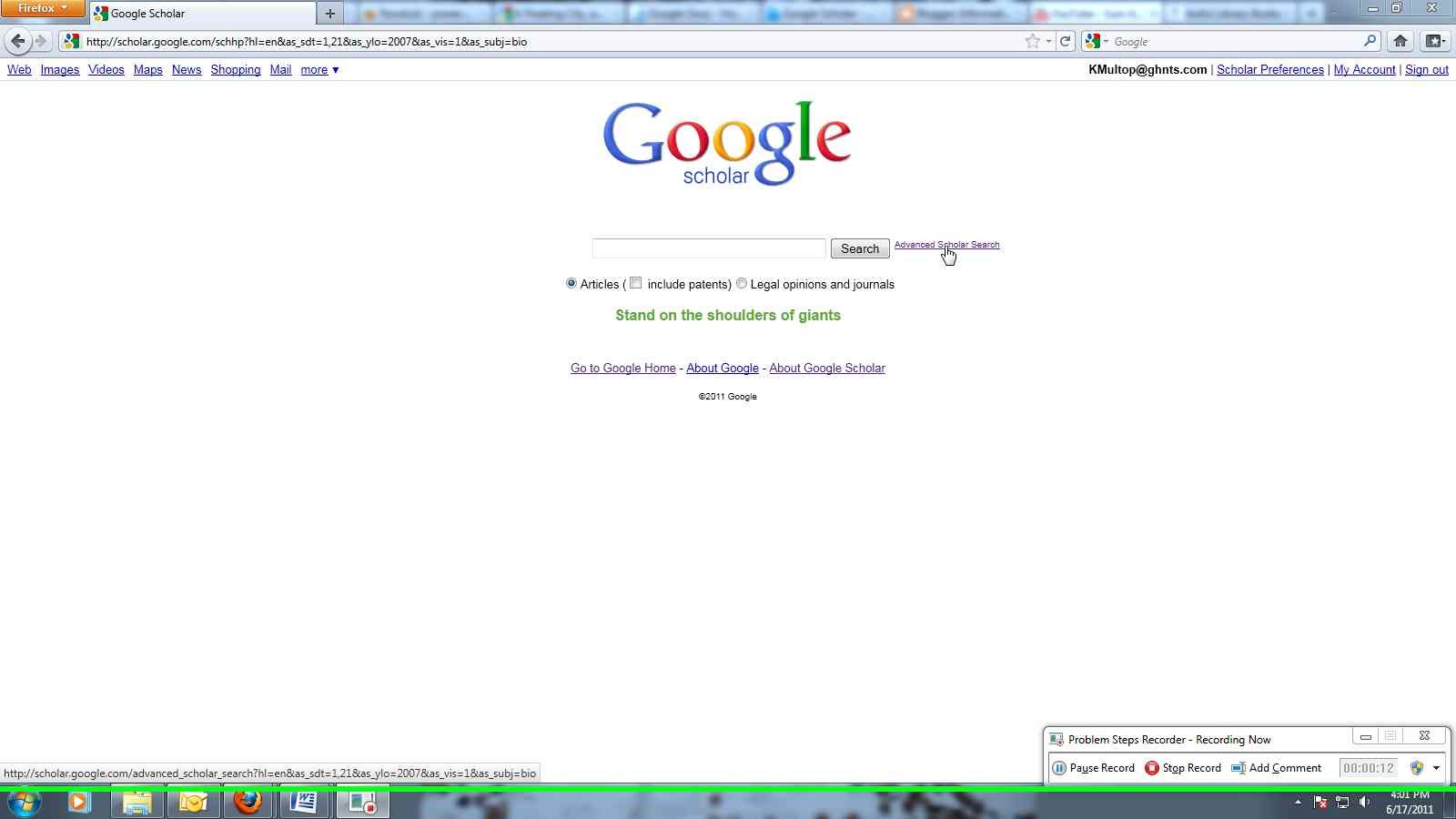
Click on the picture to see the full size version.

Start out at the Google search page and click "more" at the top left. One of the options there is Scholar. This will take you to the Google Scholar basic search page. You can do a simple search here choosing to search Articles with or without patents. I suggest going to the Advanced Search Screen to create a better search.
A basic search is fine but you can get more relevant results with the advanced search.

The Advanced Search Screen has a number of options that allow you to search very specifically. The Find Articles section gives you the ability to:
-Search for several words that appear in the same article. If you put in the words "baby" and "mother", it will look for both of these words. (This is the Boolean operator AND.)
-Search for an exact phrase. This will look for the words you type in the same order you put them in and is the same as putting quotation marks around them in a regular Google search. This is a proximity search.
-Search for at least one of the words. People use different terms to mean the same thing. Maybe some articles use the word "child" instead of "baby". Put both these words in this box and your search will give you articles where one or the other will show up. (This is the Boolean operator OR.)
-Search for something without certain words. Let's say you are looking for something and you keep getting results about a topic you don't want mixed in with the ones that you are looking for. You want to find articles about "baby" and "mother" but not about "birth". Put the word in this box to keep it out of your search. (This is the Boolean operator NOT.)

The next options are fairly simple. You can look for a specific Author or Publication. You can also look for something that was published within a specific time frame with the Date option. (The options that let you limit your search by date, publication, full-text, website, etc. are called "limiters".)
In the Collections area you can limit your results to a certain topic, like Biology, Life Sciences, and Environmental Science. This way you don't get results with similar words in areas of study you aren't interested in.
Once you've put in all the information you want to look for hit the search button and see what you get.
Take note of all the different boxes, called data fields, that you can use to create your search.

The results page is similar to what you get with a regular Google search. I have searched for the word "mother" with either "baby" or "child" without the word "birth". I've limited it to publications after 2007 in the Biology, etc. collection.

Above the results there are your limiter options including, Type of Publication, Date, and whether you want your results to include citations as well as abstracts. (You don't want just citations unless you are going to use them to find the publication somewhere else.)
I tried searching for "baby" and "infant" but I kept getting articles about dolphins.

The list of results has citation information of the article along with links to show where it has been cited and archived. There is also a link that will give you related articles. If a result has a link to the right or a PDF, HTML, or BOOK in front of the title, chances are there is a free version linked.

Google Scholar is a great place to start your search and you can find good material there. However it doesn't search everything on a website and is no substitute for going to individual databases and searching their archives.
By the by, Boolean operators are words used in advanced searches to build search strings. When you do a search you'll see some of these words in the box at the top of the results page. Look at my search above and you'll see that Google put in the operator OR and a minus sign for NOT.

I hope this makes sense! If you have any questions, add a comment, send me an email, or drop by and ask.